Clean and Merge Datasets
Edit Columns & Clean Your Data
Once you've imported data you can then do basic edits on your data table, like for example change column names or create new columns with values dependent on your existing ones. You can also make sure that you'll find the expected information in your data columns (eg. are all my records in the 'Age' column integers?) by running column validation function.
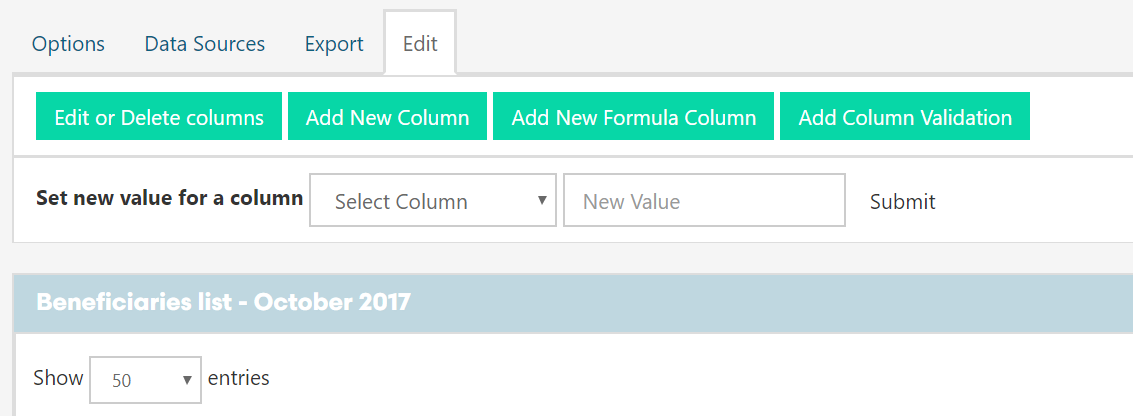
Under Your Tables navigation, click on the Edit tab and you will see the option to Edit or Delete Columns, Add New Column, Add New Formula Column and Add Column Validation. You can even set new default value for any of your columns.
Merging & Appending Tables
You can easily merge or append your Tables in Track. Let's see first, what's the difference.
When Appending Tables additional rows will be added to the existing table extending the overall table.
Use it eg. for putting together multiple tables with beneficiary data from one period delivered by your enumerators operating in different regions. As a result, you will get a table with all your beneficiary data for eg. August 2018. Before you do it, you might want to create an additional column with region name for each of your source Tables.
When Merging Tables the specified rows (e.g. User ID) in Table will be mapped across the two datasets and additional columns linked to each beneficiary/User ID will be added.
Use it when different information has been collected twice about the same population of beneficiaries and you want to see them all in one Table. In order to do that you will need to have a column with a unique value for each of your rows, eg. a User ID.
Append rows from two datasets
In order to append rows from two datasets, follow the steps below.
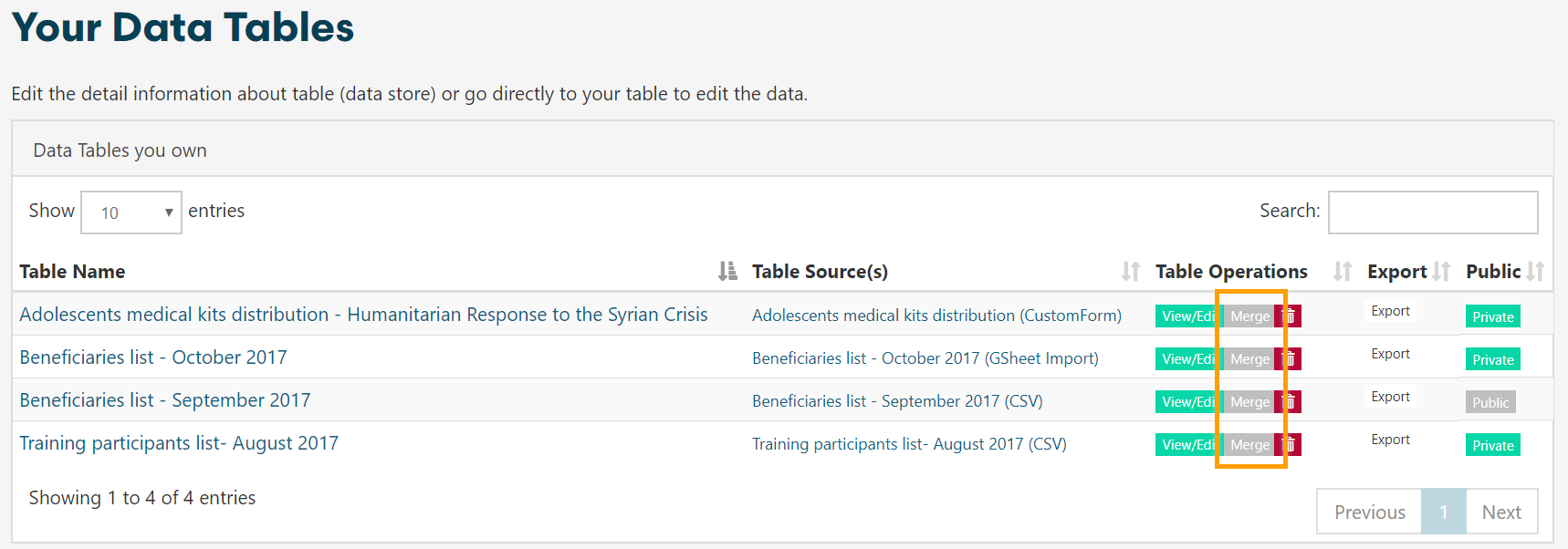
- Choose
Mergenext to the Table you want to merge from;
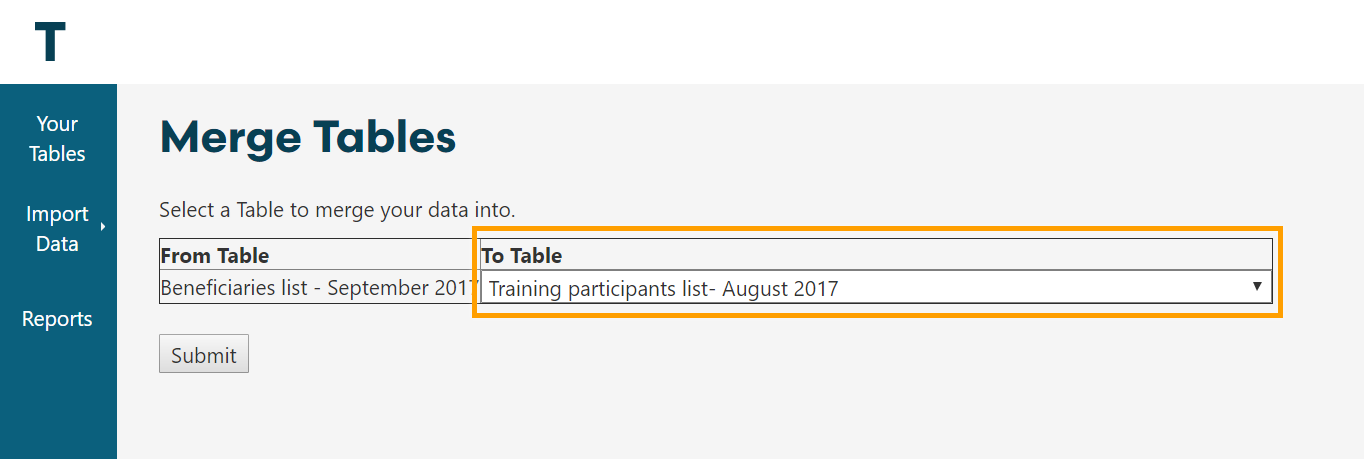
Next, choose the Table you want to merge to;
Choose the columns you want to be in your Table. Most users
Select All, but you might choose to get rid of redundant data;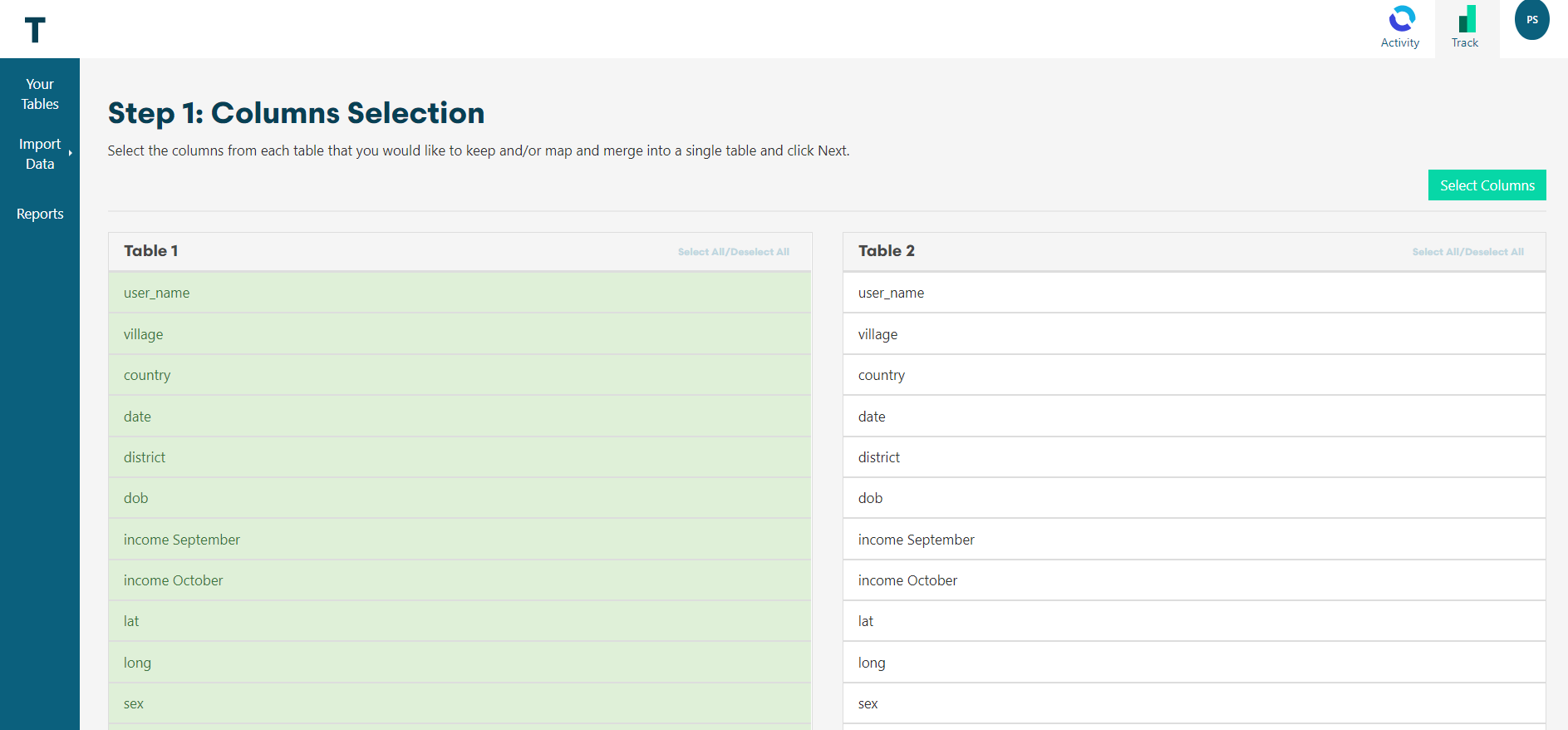
Next, map at least one column and choose
Map Selected Columns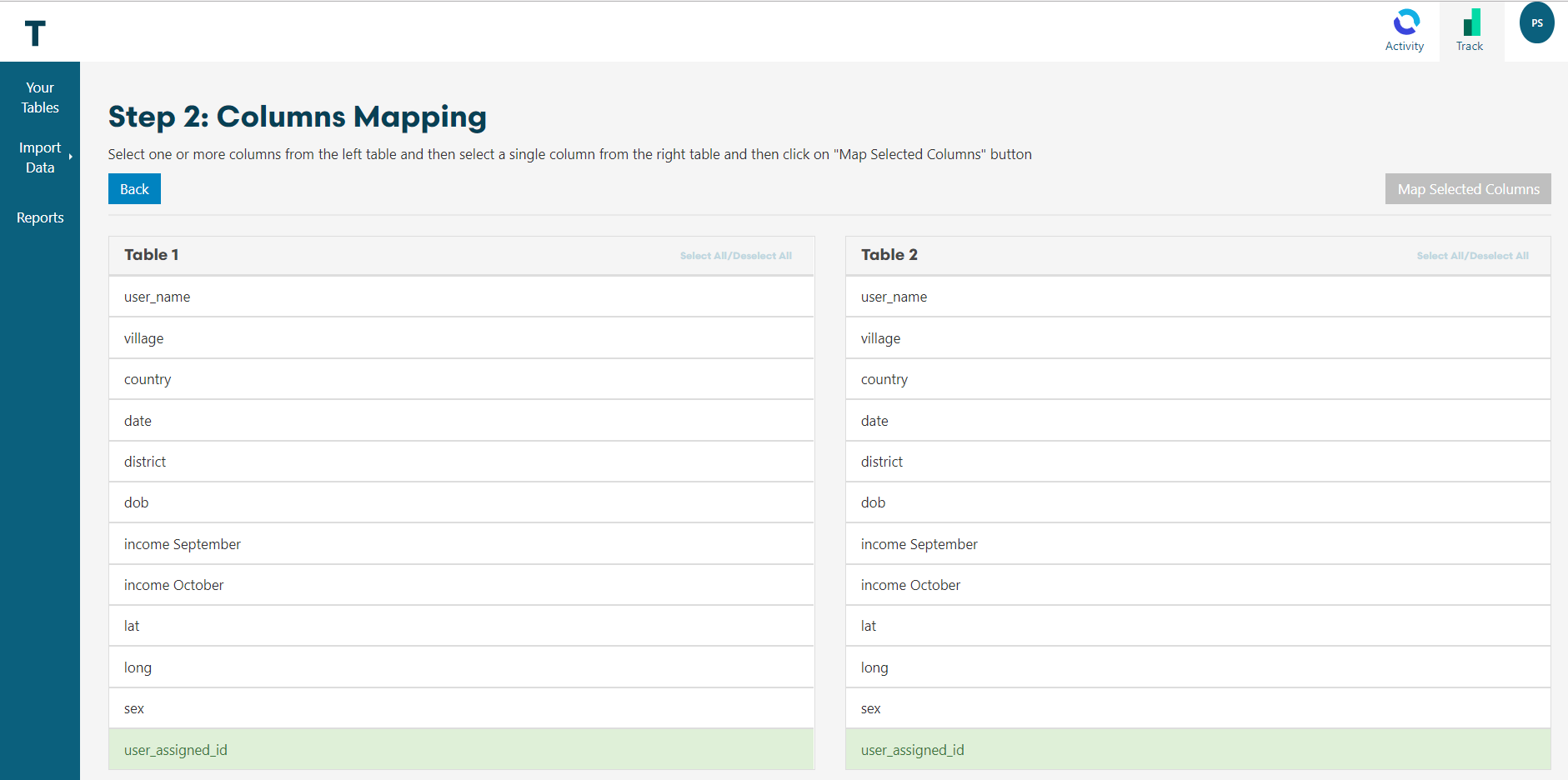
- Then choose the
Appendoption to join the additional rows of data to your new dataset.
As a result your data rows from the second dataset will be added below the original ones.
Merge two datasets
In order to merge two datasets follow the exact same steps as for append above, just this time select Merge in the last step.

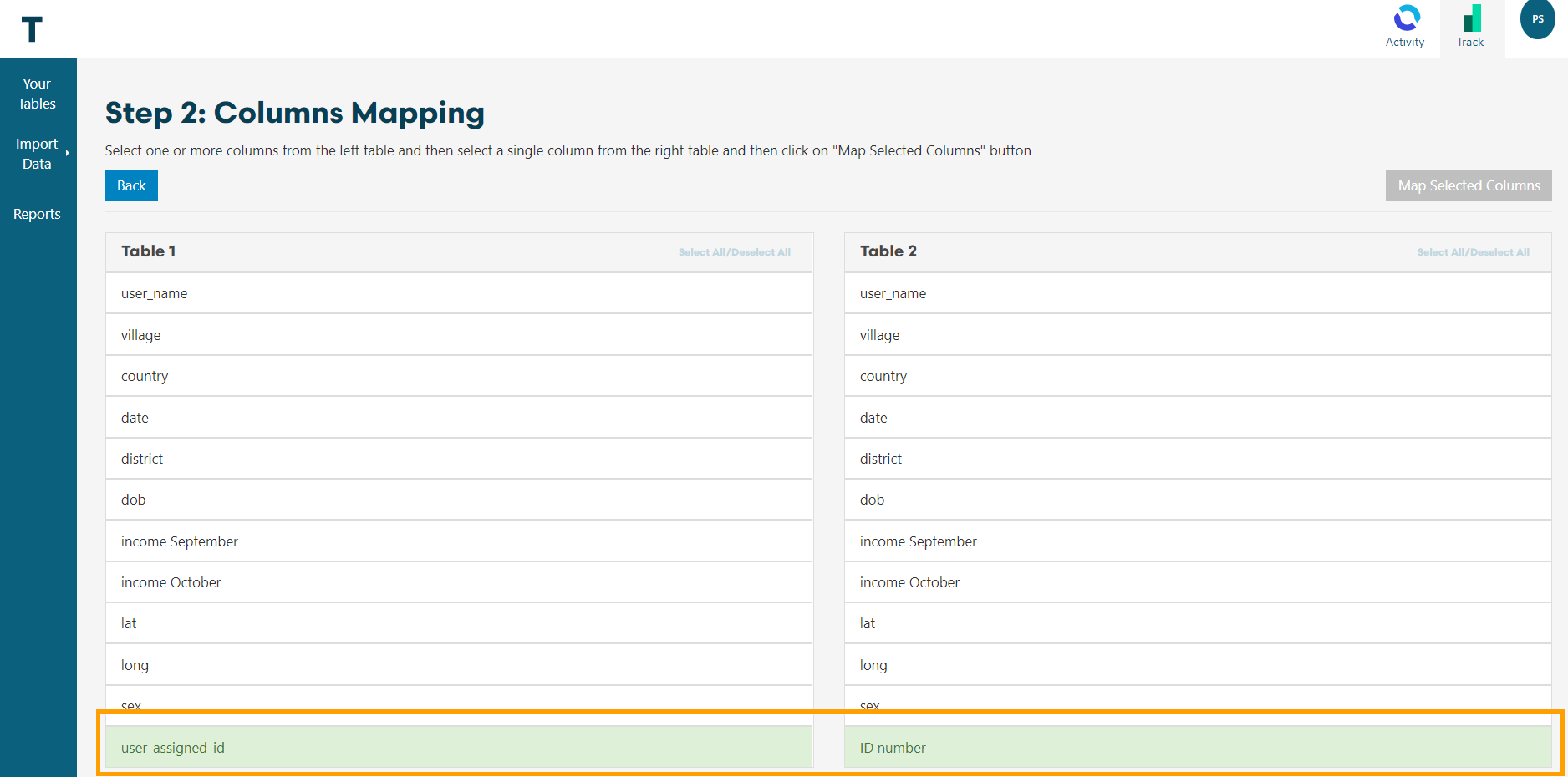
Merging Table and Mapping Columns with Different Names
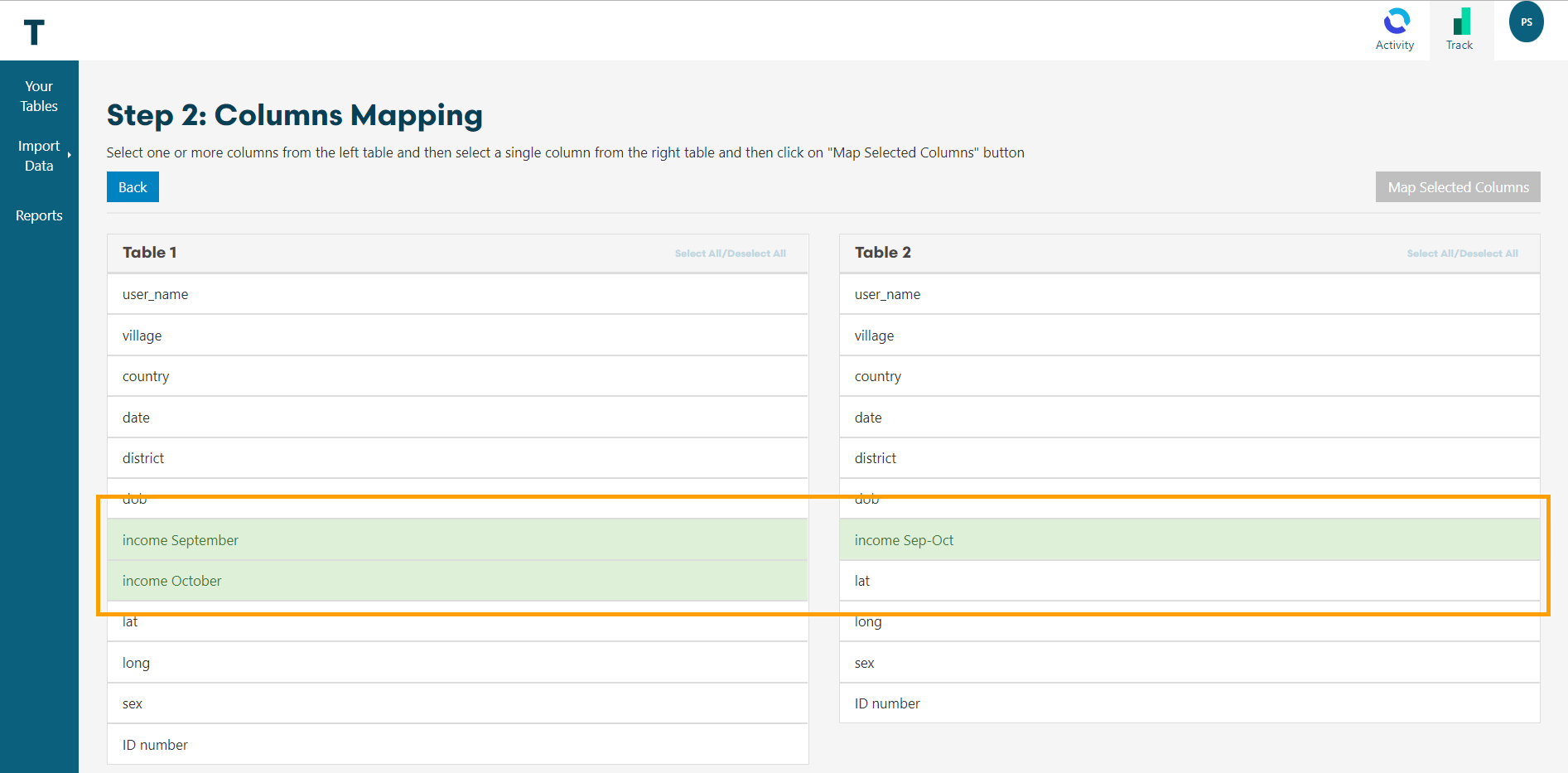
Don't worry if your column headers do not match exactly. In this case you can choose to map two different column names together. Example column: User assigned ID can be mapped to ID number.
Merging Columns - Join, Sum, Average
What if in one of your data tables eg. Name and Family name are in separate columns and in the other they sit in just one cell? You can easily put them together to follow the same scheme. Example columns: Income September and Income October can be mapped to Income Sep-Oct and summed! You can also calculate an average or simply join the two values, as you'd do with text input, like Name and Family name. You will see all available options after you hit Map Selected Columns.